Compare two folders and see exactly what differs. Organize one: file loose documents, find duplicates, fix broken names, see where the space goes. Write Markdown, and read, fill and sign PDFs. Every change can be undone.




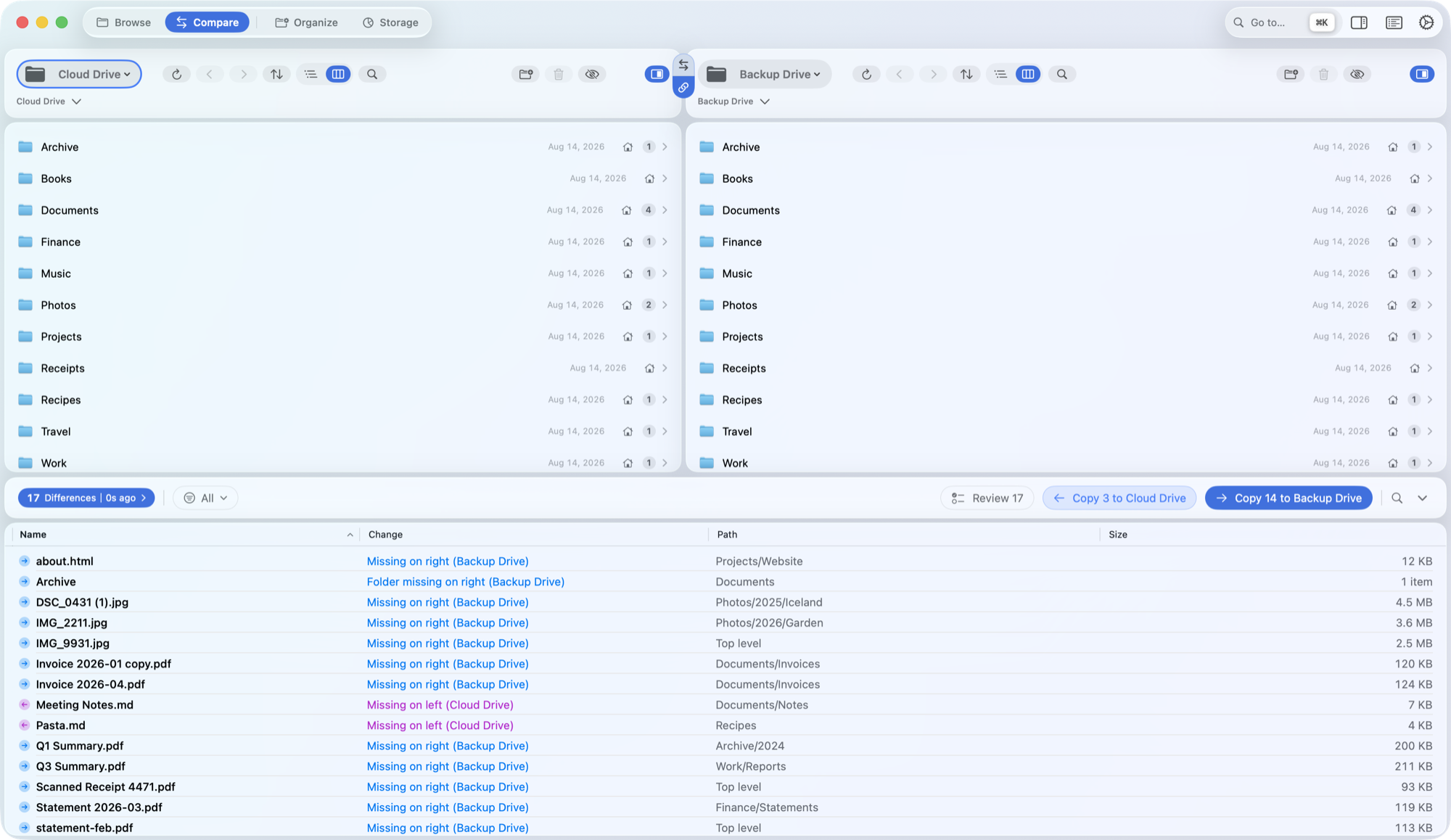
Point each pane at a provider or any folder. SyncCloud shows what's missing on either side, what's newer, and what only looks the same.
Every row is coded by shape as well as colour. A date tolerance absorbs the timestamp rounding cloud providers do, so you aren't buried in false differences.
kind:pdf, >10mb, only:left, with live counts.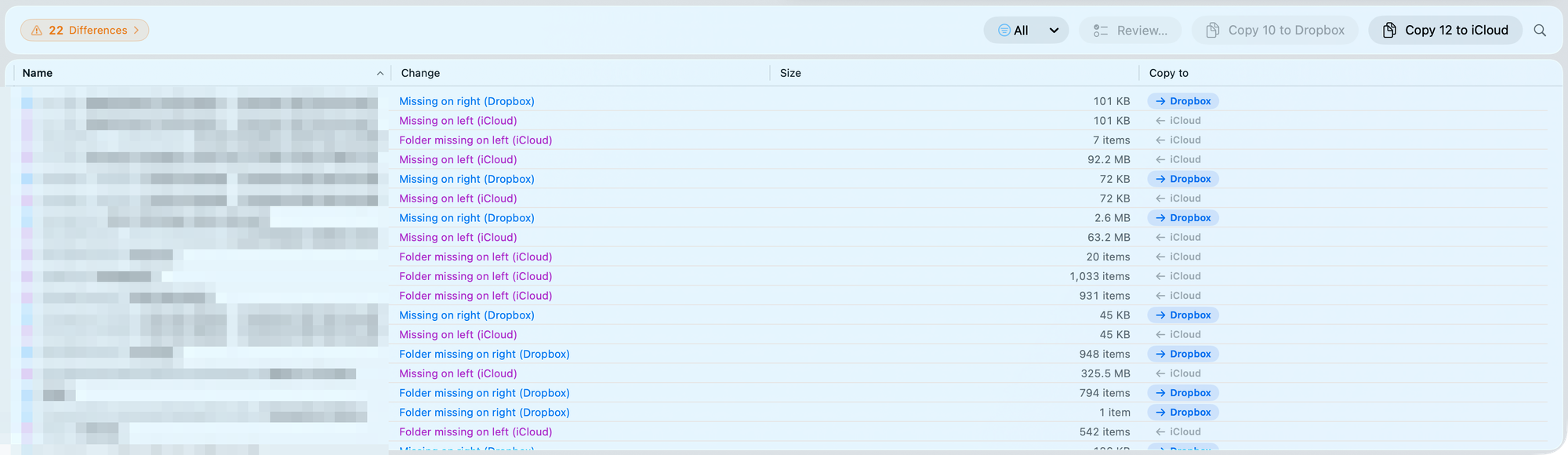
Copy or move in bulk, or step through one difference at a time. When two files share a size but not a date, SyncCloud checksums both to tell you whether they truly differ.
⌘→ to copy, add ⇧ to move.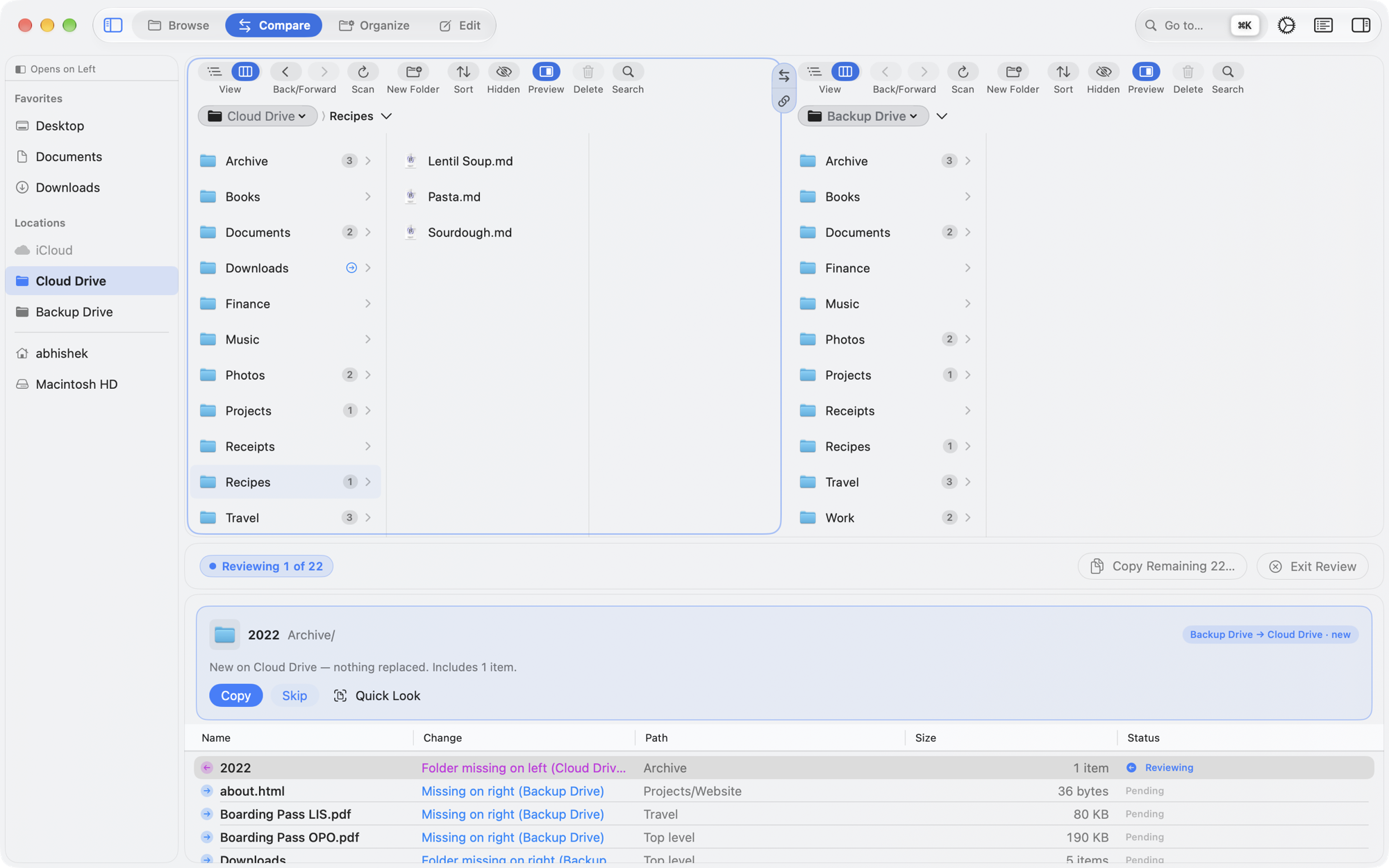
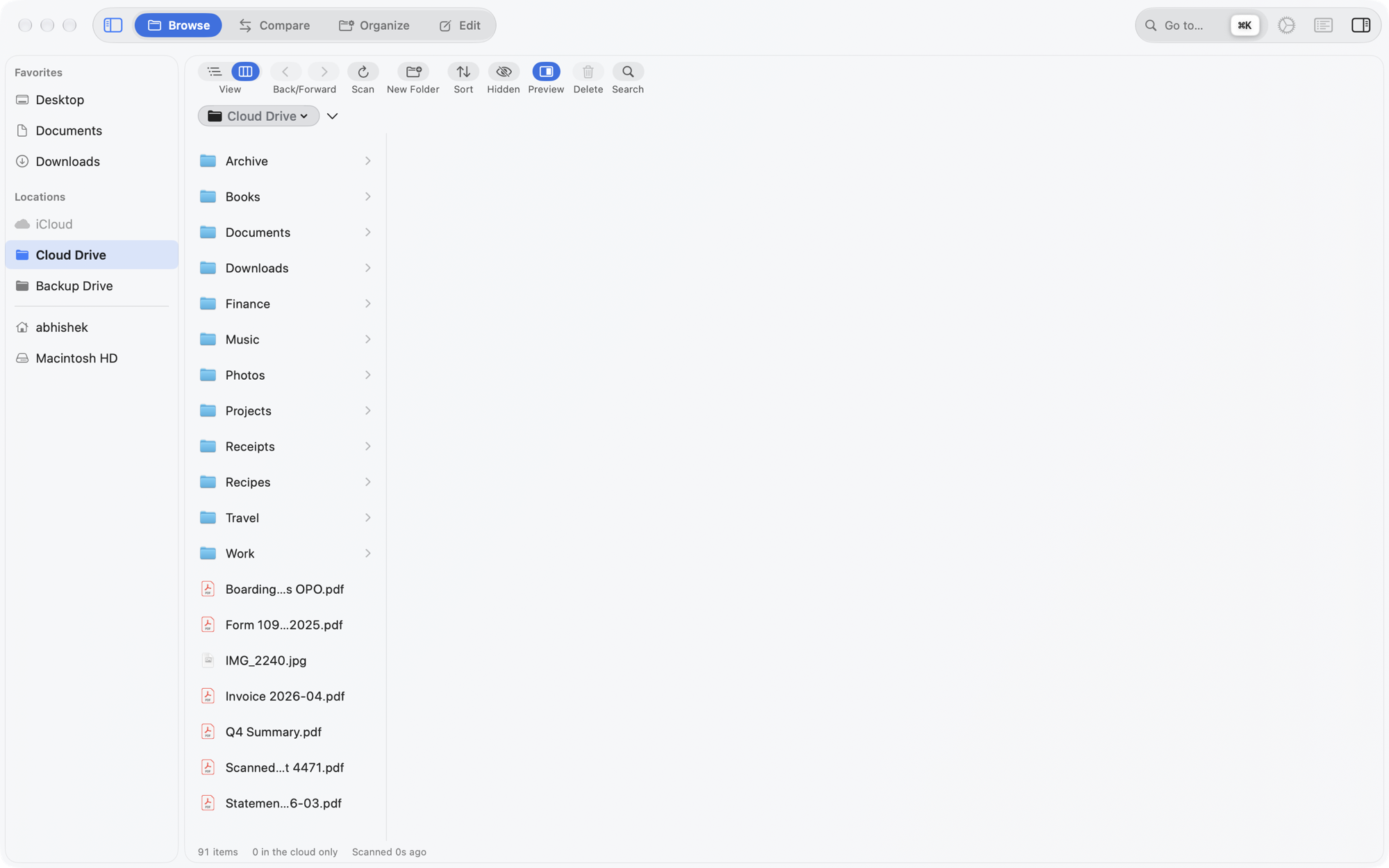
SyncCloud opens in Browse: one provider with the whole window, and nothing proposed — just your files, in columns the way Finder shows them.
Favorites you curate, Locations for every account and disk, and Recents — or switch it to Revisited or Frequent. In every workspace, across every source.
Each level stays on screen, so you see the route you took. Select a file and it previews beside the columns.
Tabs in every pane. In Compare, link the two panes and a step into a folder on one side follows on the other.
Drag the controls you use into the bar above each pane, drop the ones you don't, and it stays that way.
Point Organize at one provider and pick the lens the mess calls for.
Suggests which existing folder each loose file belongs in, and files it there. Works offline; Apple Intelligence or Claude can sharpen the picks.
Identical copies, overlapping folders, drifted versions, and PDFs with the same text. Picks a sensible keeper and never trashes the last copy.
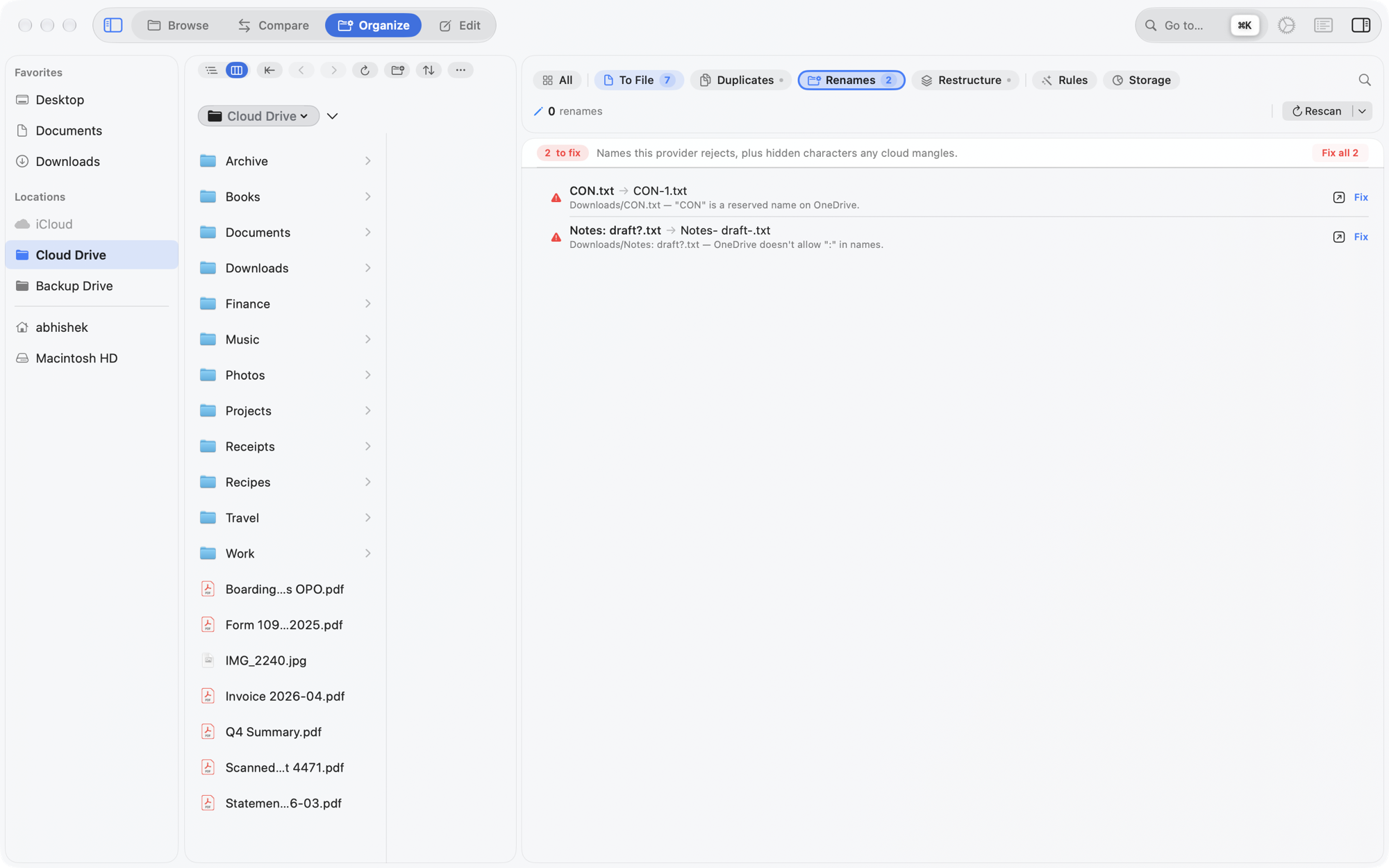
Names a provider would reject — OneDrive's forbidden characters, Dropbox's trailing spaces, invisible characters — and files that break their folder's own date or numbering convention.
Finds where a tree disagrees with its own habits, and turns it into a plan you review before anything moves.
On-device rules — "when a file matches …, file it into Taxes/{year}" — with a dry run. SyncCloud can learn one from a file you filed by hand.
A treemap and ranked lists of where the space goes. Read-only: it never moves, deletes or evicts a file.
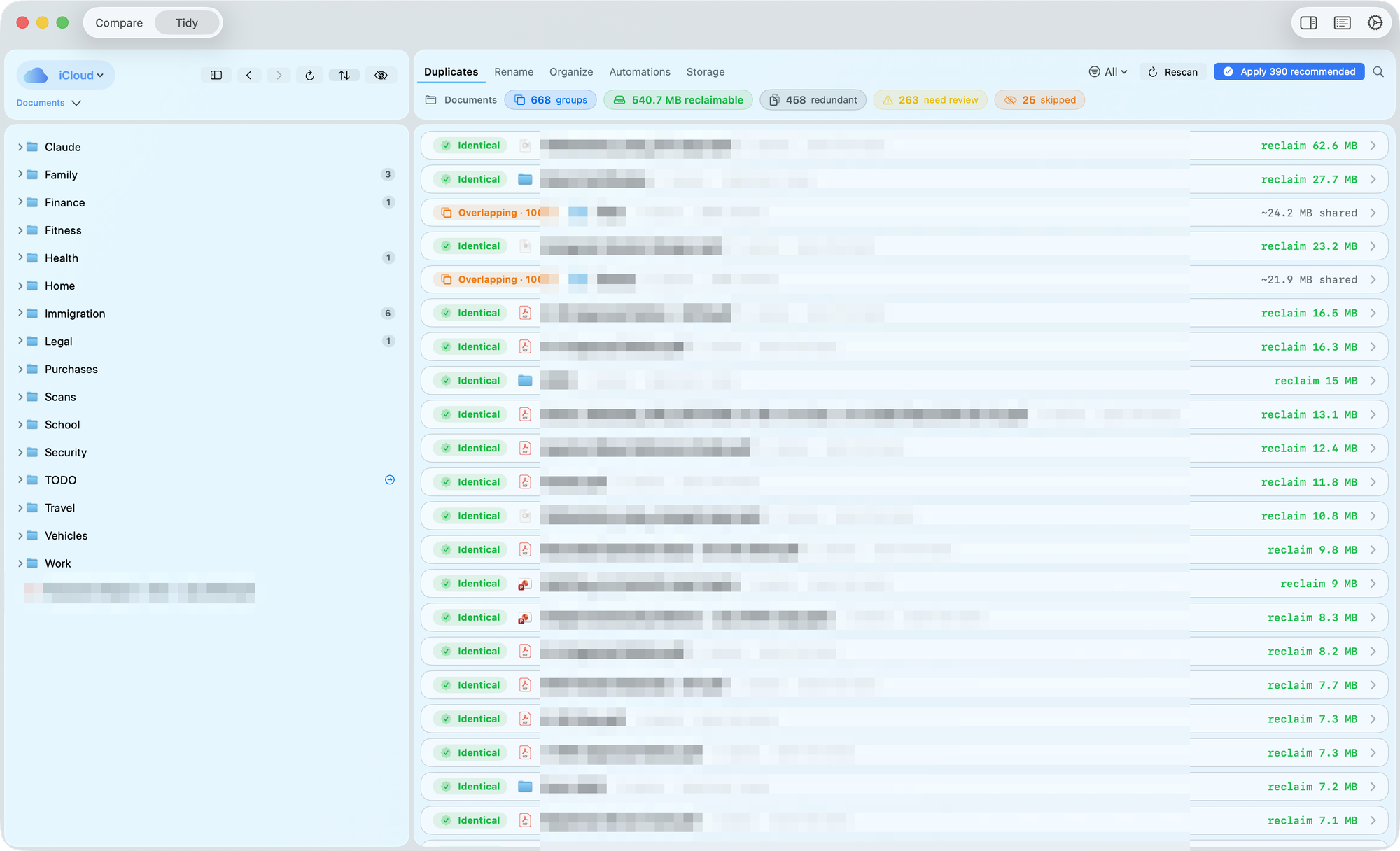
SyncCloud hashes files rather than trusting names, and never trashes the last copy of anything. The keeper it suggests is the one not buried in archive/, old/ or backup/ — and you can always pick another.
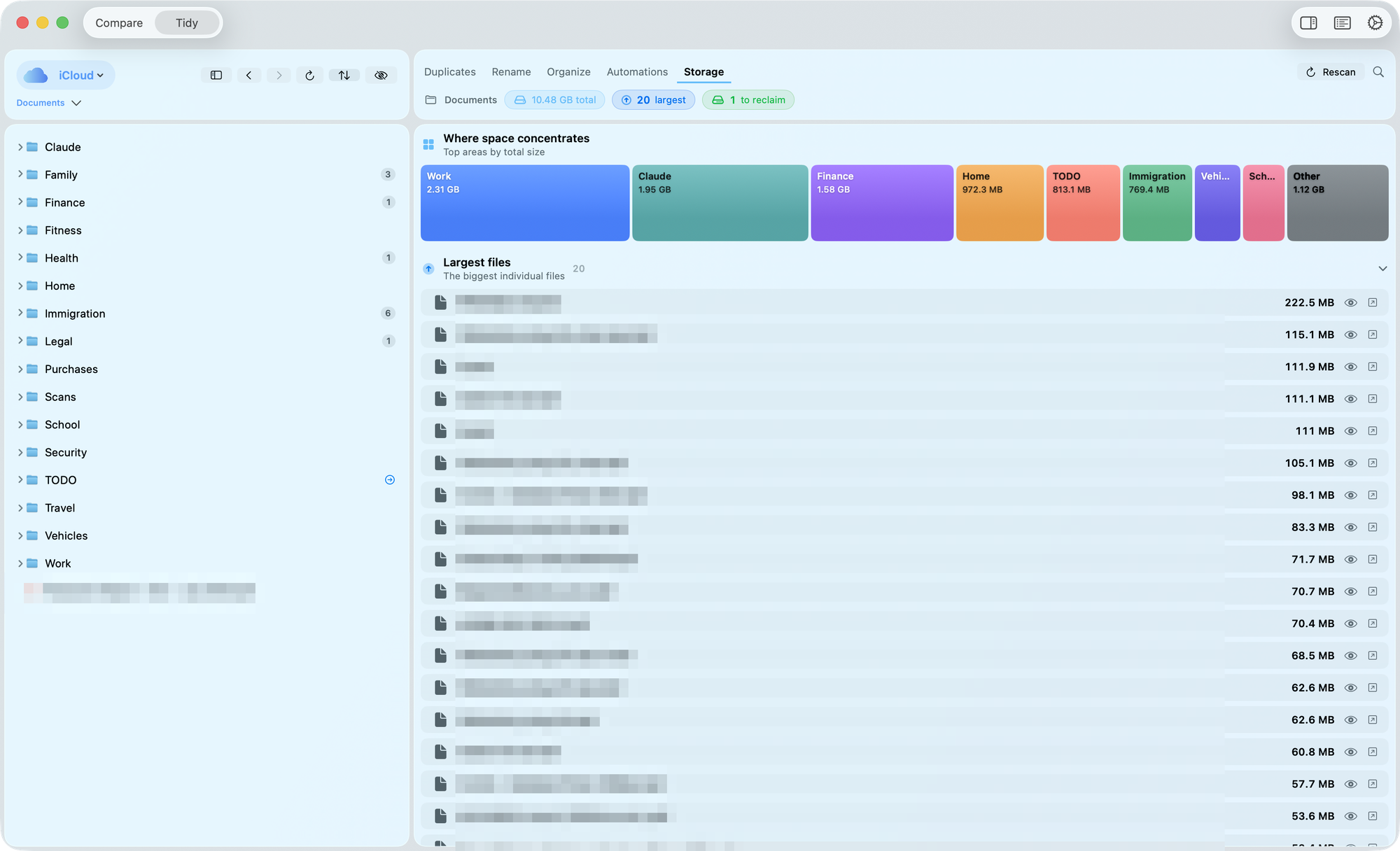
Report, Report (1), Report-final.A treemap of your biggest folders, and three ranked lists: the largest files, the ones untouched for over a year, and big idle files worth offloading.
Folders filed sensibly at the time end up disagreeing with each other years later. Restructure finds the drift, plans the fix, and keeps the way back on disk.
Siblings shaped differently, a year hiding inside a name, Form W-2 beside Form W2, an inbox mirroring a real folder, empty and pass-through folders, and more.
One mapping across the whole family. Every operation is derived, not typed, and listed before anything moves.
A name that's taken gets a new one rather than an overwrite, and no file is deleted.
⌘Z undoes the whole change. "Undo This Reorganisation" replays a reversal saved to disk, so it works after a quit.
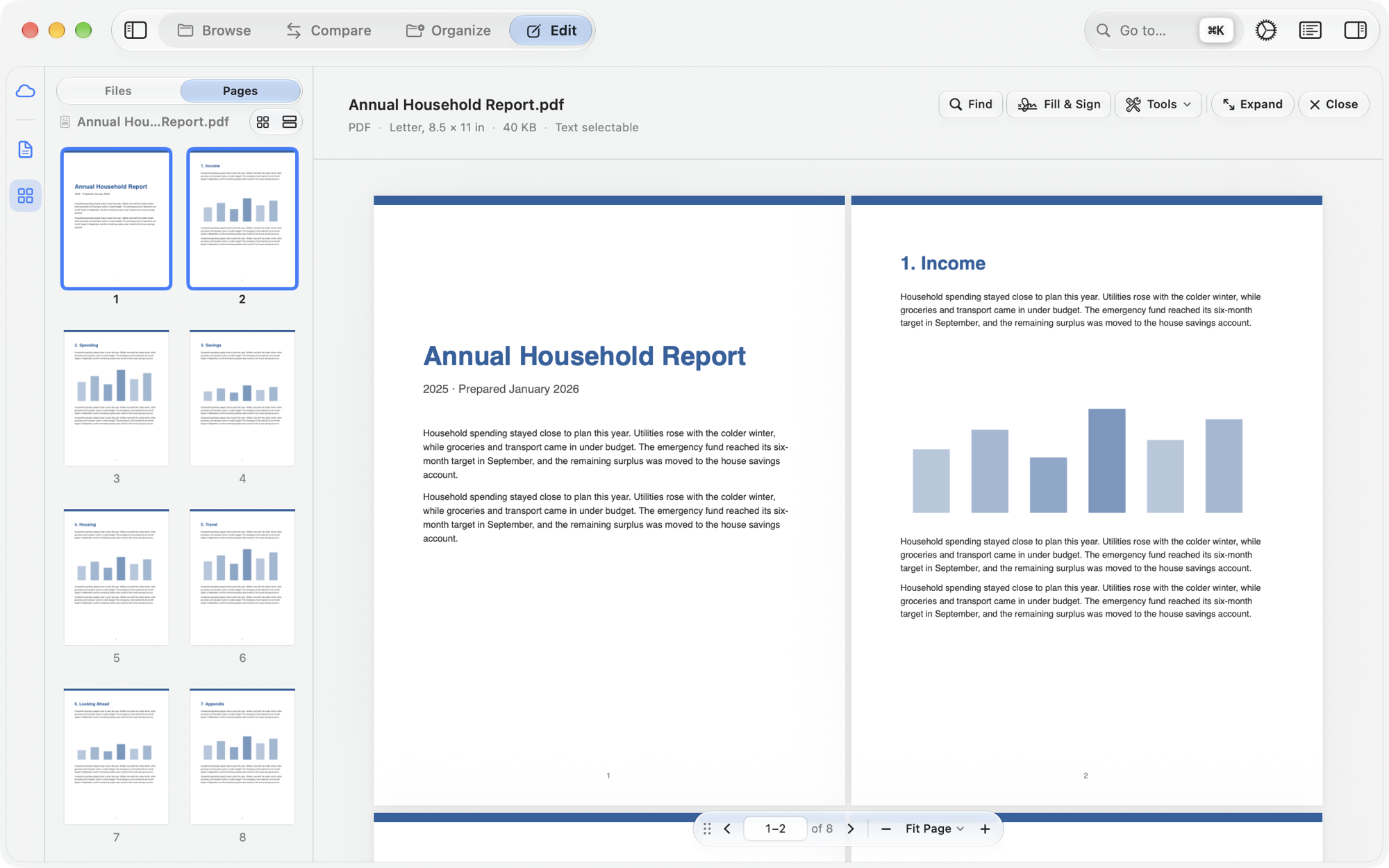
Every other workspace moves files. Edit changes what's inside one — a note, a README, a PDF form — with the same care.
Source, Preview or Split, with buttons for headings, emphasis, lists, code, links and tables. Preview can be typed in too (experimental).
Images folder.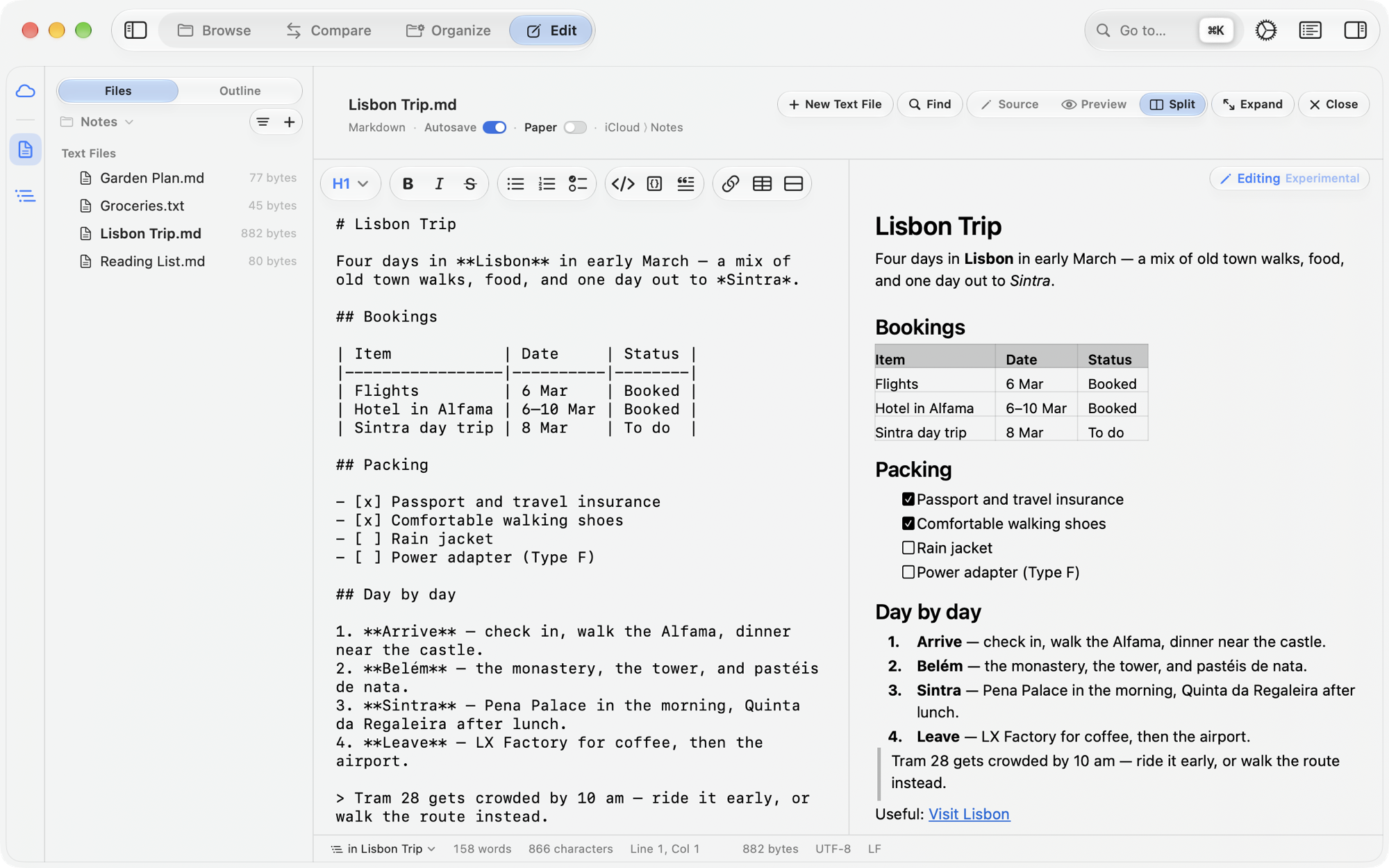
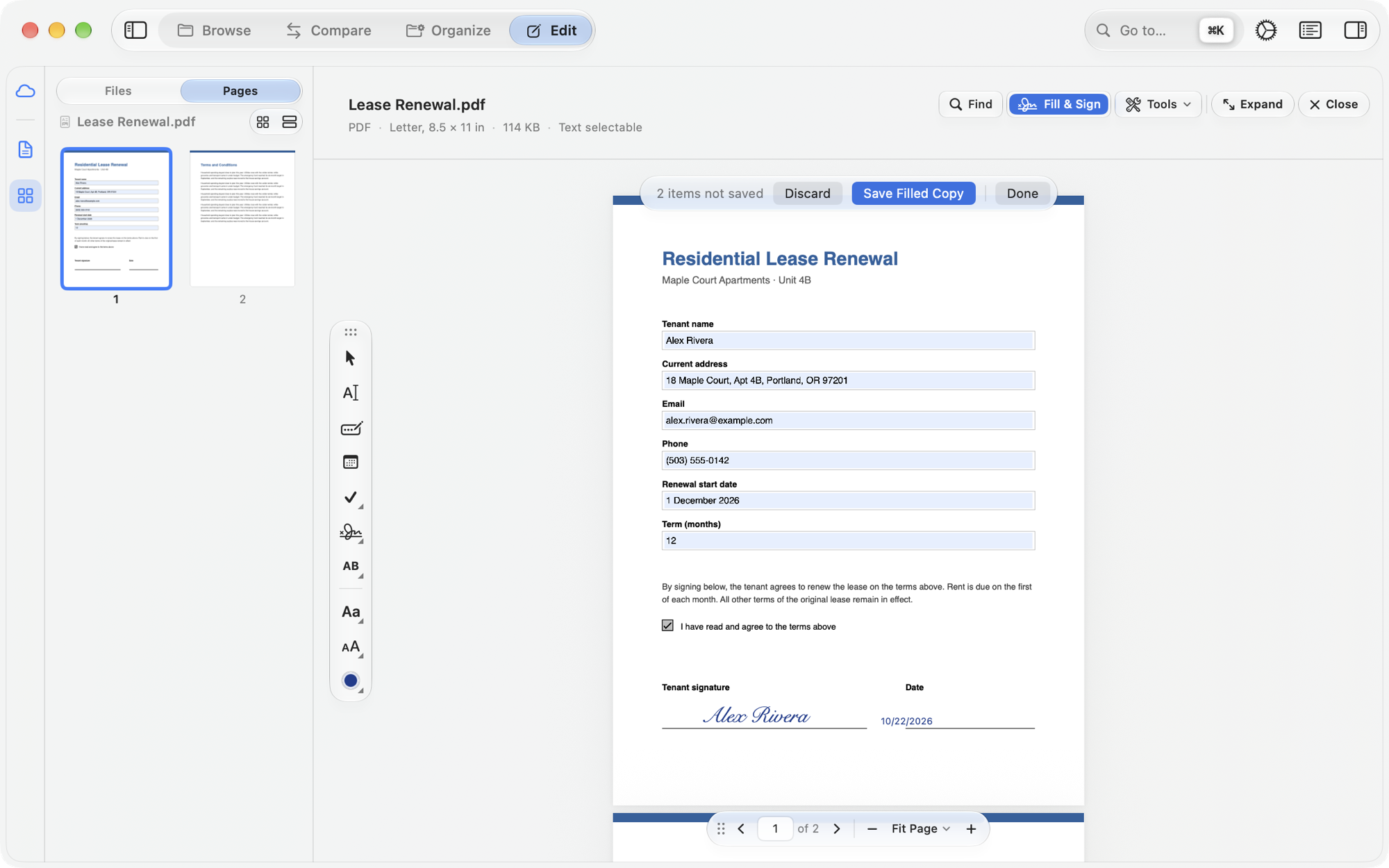
Every change writes a new PDF beside the one you opened, named for what it did — Lease (signed).pdf.
A moment after you stop typing. Each save is staged and swapped in atomically, in the file's own encoding.
A file edited elsewhere reloads — or, if you have unsaved typing, asks which version to keep.
A file that isn't valid text opens read-only, so its bytes are never rewritten.
The empty page lists your recent files, with a New Note button. Opens from Finder's Open With, too.
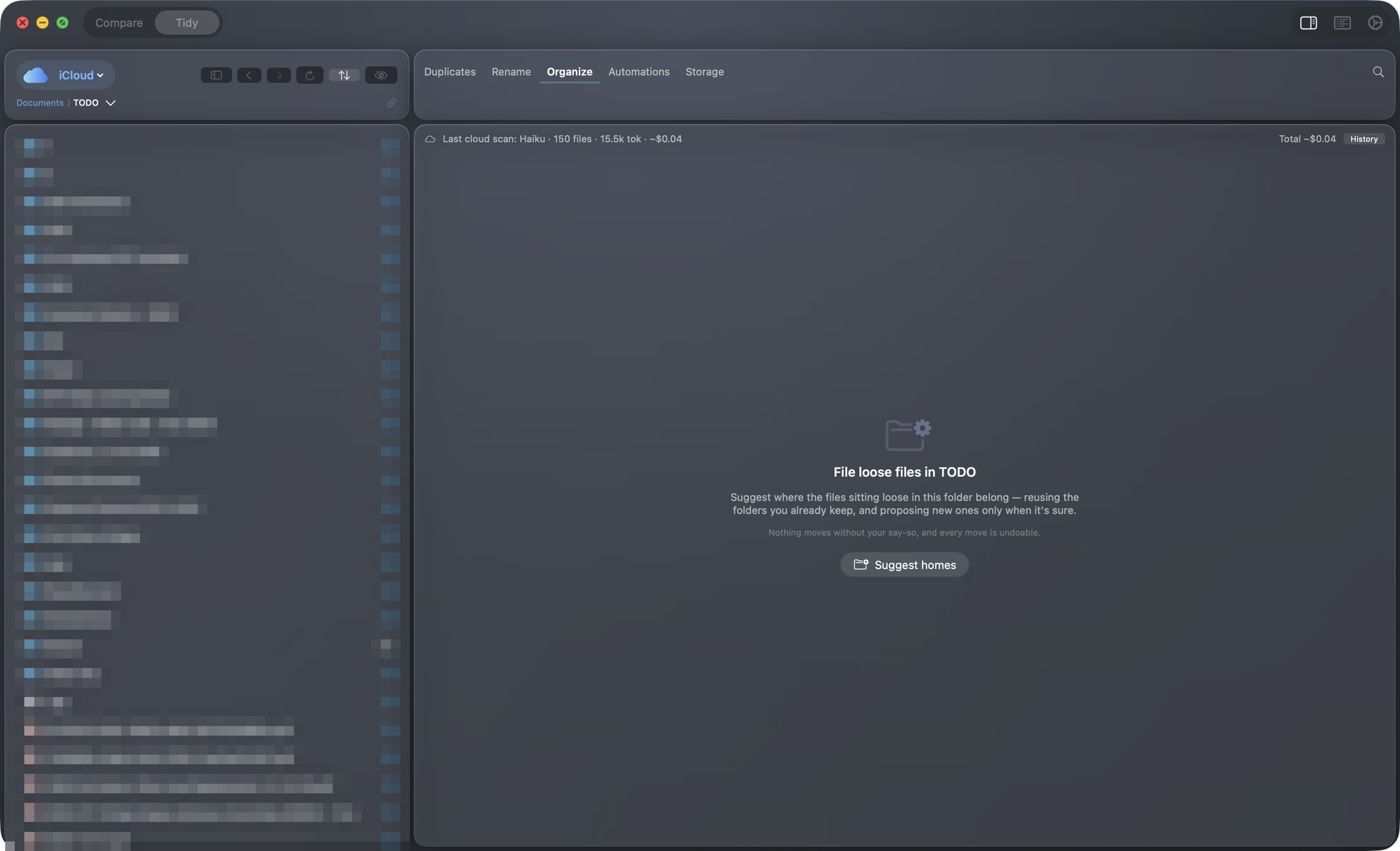
Point To File at a folder of downloads and scans. An offline engine reads your folder names, the filenames and, on device, a little of each file's text — then proposes a home for each, with a confidence and a plain-English reason.
Want sharper picks? Add AI. It's optional, and the cloud option is metered.
Every change is reversible, and when something is ambiguous SyncCloud stops and says so rather than guess.
Copy, move, delete, rename, new folder — each run is one ⌘Z, and Undo Last Run reaches back further.
Deletes go to the Trash. Permanent delete exists only, with a clear warning, on a disk that has no Trash.
A replacement is staged and swapped in, so the original is never briefly missing — and a backup is kept.
From/To confirmations, a choice on every collision, an invalid-name guard, and a boundary that won't cross provider roots.
git-style CLIScan and sync from the terminal or a script — no window required.
# list the cloud providers on this Mac
$ synccloud providers

# compare two folders (a provider id/name or a path)
$ synccloud scan -L iCloud/Documents -R OneDrive/Documents
$ synccloud scan -L ~/A -R ~/B --json     # machine-readable

# sync one way, keeping both on a collision (prompts unless --yes)
$ synccloud sync -L ~/A -R ~/B --direction to-right --strategy keep-both --yes
$ synccloud sync -L ~/A -R ~/B --verify   # checksum same-size pairs first

# report where a tree disagrees with its own habits (read-only)
$ synccloud restructure --json
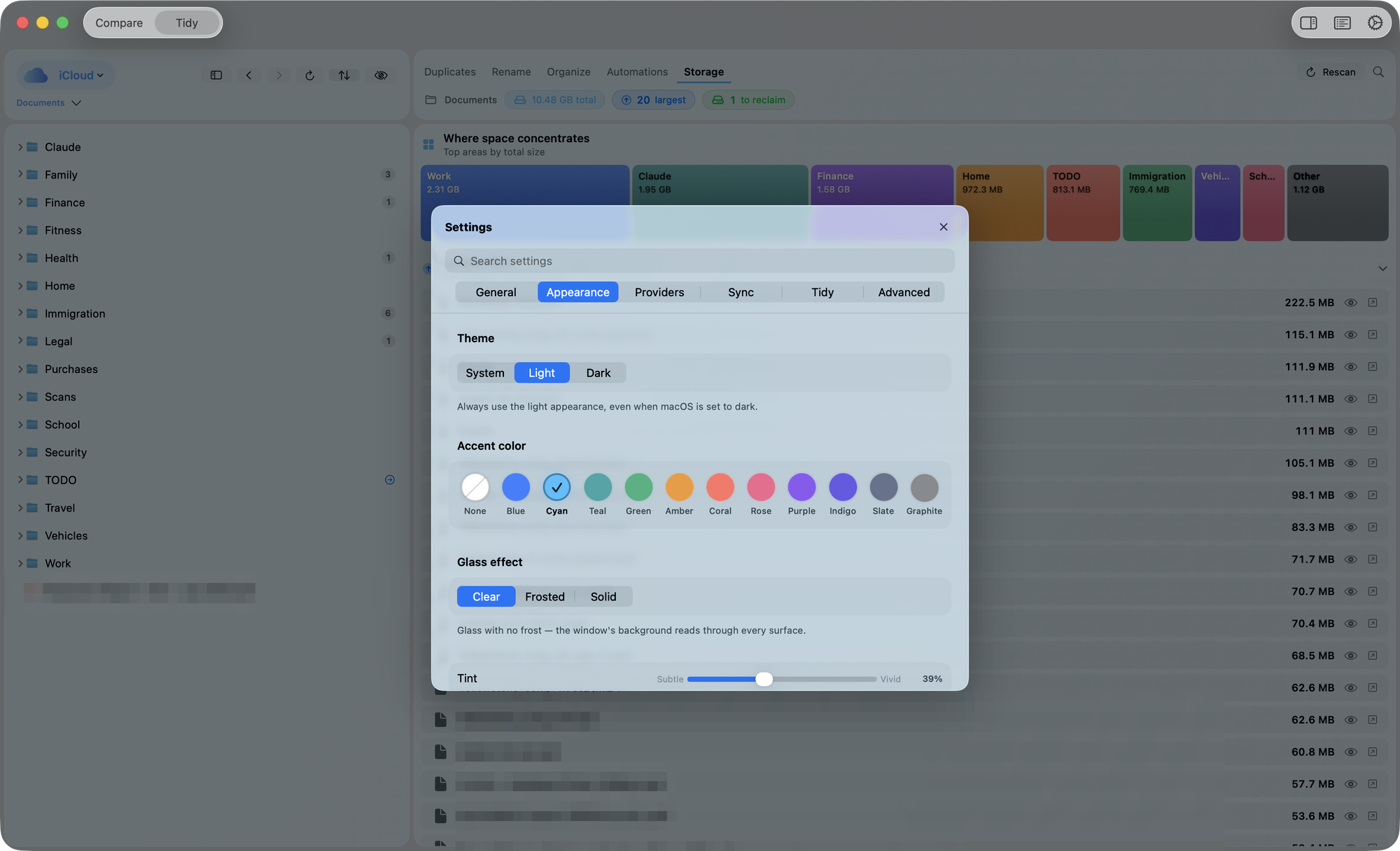
Liquid Glass, light and dark themes, 11 accent hues, and a colour for each provider.
 SyncCloud